The short answer
To stop in-app purchases on an Android phone or tablet, require purchase approval in Google Family Link9, set Google Play's Purchase verification to Always, keeping biometrics off if your child's fingerprint is on the device16, and remove saved card details from their device. Then check your Google Play order history every month or so, because small, repeated charges are easy to miss.
- What is a loot box?
- Paying for a random reward, styled like a prize draw.
- What is pay-to-win?
- Free progress is made painfully slow, so a small payment feels like the only way forward.
Lock it down in 3 steps
Each takes a few minutes, done once. Settings menus change as apps update, so if a screen looks different, search your device's settings for the feature by name.
Require purchase approval in Family Link
Once your child's Google account is linked to yours, Family Link can ask for your approval before a purchase goes through, including in-app purchases inside games9. It stops accidental spending before it happens.
Where to find it: Family Link, your child, Controls, Google Play, Require approval for
More on setting up Family Link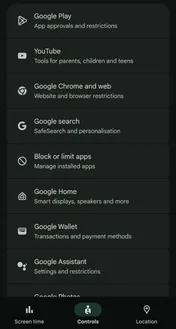
1Pick your child, open Controls, then tap Google Play
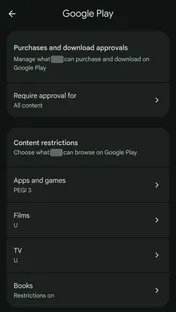
2Tap Require approval for
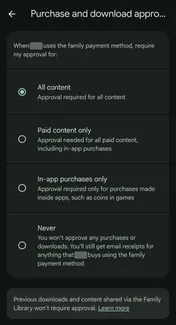
3Choose All content
Real screens from our own family's phone: Pixel 7, Android 17, checked 15 October 2026. Names and photos hidden. Add a check at the till
In the Play Store, set Purchase verification to Always, so nothing can be bought with a single tap. Keep biometrics off if your child's fingerprint is on the device, or their finger can approve the purchase16.
Where to find it: Play Store, Payments and subscriptions, Purchase verification
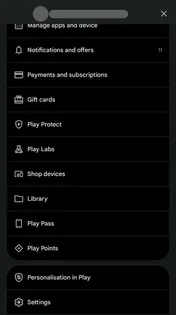
1Tap your profile picture, then Payments and subscriptions
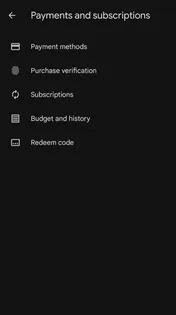
2Tap Purchase verification
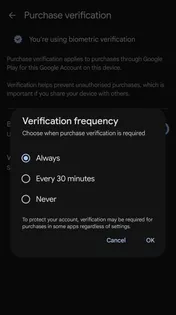
3Set Verification frequency to Always
Real screens from our own phone: Pixel 7, Android 17, checked 15 October 2026. Name and photo hidden. Remove saved card details
Take any saved payment cards off your child's device where you can. With no card on file, a tapped "Buy" button has nothing to charge.
Where to find it: Play Store, Payments and subscriptions, Payment methods
Make it a monthly habit: open play.google.com, then Payments & subscriptions → Budget & order history, and scan for small, repeated charges43.
Key facts
Free to quote, with a link to this page
- 53%
of UK 8 to 17-year-olds who play games online spend money inside the games1.
Source: Ofcom, 2025
- $245M
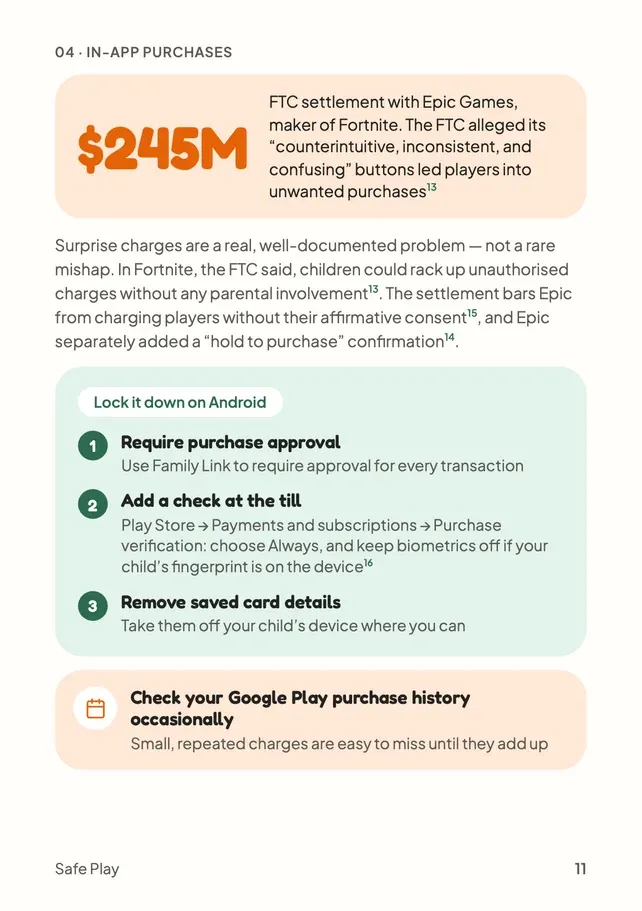
FTC settlement with Epic Games, maker of Fortnite. The FTC alleged its "counterintuitive, inconsistent, and confusing" buttons led players into unwanted purchases13.
Source: Federal Trade Commission
- 120 days
to report a Google Play charge you don't recognise. You'll usually get a decision within a day, but it can take up to four43.
Source: Google Play Help
Why "free" games are built to make children spend
Most games make their money once your child is already inside, through skins, loot boxes, power-ups or virtual currency that makes real money feel less real. Two patterns do most of the work:
Pay-to-win
Free progress is made painfully slow, and a small payment removes the friction instantly.
Loot boxes
Paying for a random reward, styled just like a prize draw.
Both are designed to take advantage of impulse control that children are still developing.
What these settings can't do
| Task | Settings |
|---|---|
| Purchases through Google Play | ✓ Yes9 |
| One-tap buying in the Play Store | ✓ Yes: verification every time16 |
| Payment systems outside Google Play | ✕ No9 |
| Supervision after 13 | Carries on until you stop it8 |
- Family Link's purchase approvals only cover purchases made through Google Play's own billing system9. A game with its own payment system can sit outside what they control.
- When your child turns 13, they can move to a supervised teen account. Supervision carries on, and a teen needs your approval to stop it8.
Settings are a foundation, not a guarantee. Which is why the next part matters most.
Myth vs fact
What parents often hear, checked against the sources
The most important part
It's not your child's fault. And it's not yours either.
In-app spending isn't a sign of a naughty child or a careless parent. Many games are built by teams whose job is to make buying easy and hard to resist: prices hidden behind coins and gems, rewards that feel one tap away, buttons placed where small fingers land. In Fortnite, the FTC said, children could rack up unauthorised charges without any parental involvement13.
The settings above genuinely help, but no setting catches everything. Researchers found children can and do bypass parental controls, and little support for relying on them as a stand-alone safety strategy46. What does make a lasting difference is awareness, and being able to talk about it openly, without judgement.
Talking about it, before anything happens
Talking about risks and helping children use games well, rather than only blocking them, goes with stronger digital skills49. A few easy ways in:
What makes you want to buy things in this game?
Be genuinely curious, not checking up. You'll learn how the game works on them.
Shall we work out what those gems really cost?
Spot the tricks together. Turning coins back into pounds makes real money feel real again.
If a game asks for money, come and find me.
Agree a simple family rule, framed as a team plan, not a punishment waiting to happen.
And if it's already happened
Many children delay telling a parent because they fear the reaction more than the incident itself45. How you respond in the first few minutes shapes whether they come to you next time.
"You're not in trouble, and I'm glad you told me."
Lead with reassurance, not blame. Then sort the refund together and talk about what made the purchase feel so easy. Games and tricks will keep changing. A child who knows they can come to you won't go out of date.
Already been charged? How to ask Google Play for a refund
Find the purchase
Go to play.google.com, then Payments & subscriptions → Budget & order history43.
Request a refund
Choose Report a problem on the order and explain what happened. Report a charge you don't recognise within 120 days, and allow up to four days for a decision43.
Refunds like this aren't a favour. Google previously paid at least $19 million in FTC-mandated refunds after children ran up charges without a password, or in a 30-minute window after one was entered44.
Sorting the refund is only half of it. If your child made the purchases, how you talk about it matters just as much.
Put it into practice
Actions you can take now
Everything this chapter covers, as a short to-do list you can work through now, while it's fresh.
About five minutes in total. Tick them off as you go.
0 of 4 done
Common questions
Can Google Family Link stop in-app purchases?
Yes. With your child's account linked to yours, Family Link can require your approval for purchases made through Google Play, including in-app purchases9. It can't control payment systems that sit outside Google Play's billing.
My child spent money in a game without asking. Should I punish them?
Games are designed to make buying easy and hard to resist, so it's rarely about a child misbehaving. Lead with reassurance, ask Google Play for a refund, and talk together about what made the purchase feel so easy. Many children delay telling a parent because they fear the reaction45, so a calm response makes it more likely they'll tell you next time.
How long do I have to ask for a refund on Google Play?
Report a charge you don't recognise within 120 days, through Payments & subscriptions → Budget & order history on play.google.com. You'll usually get a decision within a day, but it can take up to four43.
Do these settings still work when my child turns 13?
Yes. At 13, your child can move to a supervised teen account, but supervision carries on and a teen needs your approval to stop it8. Removing saved cards and keeping purchase verification on Always still helps either way.
Should I use my fingerprint to approve Google Play purchases?
Only if your child's fingerprint isn't saved on the same device. Set purchase verification to Always and keep biometrics off if it is, or your child's finger can approve a purchase16.
Sources
- Ofcom, Top trends from our latest look at UK children’s online lives (2025) · ofcom.org.uk
- 5Rights Foundation, New research reveals how children face financial harm online (2025) · 5rightsfoundation.com
- Google Families, Family Link FAQ · families.google
- Google For Families Help, Purchase approvals on Google Play · support.google.com
- Federal Trade Commission, FTC Sends Refund Payments to Consumers Impacted by Epic Games’ Unlawful Billing Practices · ftc.gov
- Google Play Help, Purchase verification for Google Play · support.google.com
- Google Play Help, Request a refund on Google Play · support.google.com
- CBC News, Google to refund $19M US for kids’ mobile spending sprees · amp.cbc.ca
- Net Psychology, Online Grooming: How Predators Manipulate Children (2026) · netpsychology.org
- Stoilova, M., Bulger, M. & Livingstone, S., Do parental control tools fulfil family expectations for child protection? A rapid evidence review of the contexts and outcomes of use (Journal of Children and Media) (2023) · tandfonline.com
- Livingstone, S. et al., Maximizing opportunities and minimizing risks for children online: the role of digital skills in emerging strategies of parental mediation (Journal of Communication) (2017) · eprints.lse.ac.uk
- 42matters, Google Play Statistics and Trends 2026 (2026) · data.42matters.com
- Sensor Tower, State of Mobile 2026 (2026) · sensortower.com
Page updates
- Chapter 04 published as its own page, with real Google Play screens checked on 15 October 2026.