The short answer
Many gaming platforms are public by default, so profiles, activity and even real names can be visible to strangers. In about five minutes: link a child account to yours5353637, make the profile private and hide their real name, turn off location sharing and personalised ads34, turn on 2-step verification34, and limit friend requests and messages to friends only3536.
- What is 2-step verification?
- A second check, such as a code sent to your phone, needed as well as a password to sign in.
Public by default, private in five minutes
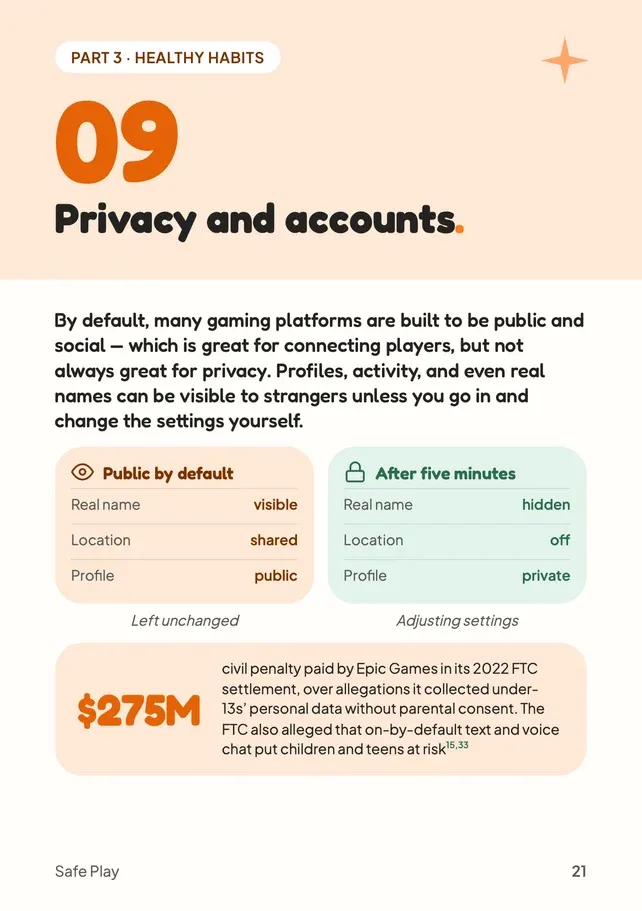
By default, many gaming platforms are built to be public and social, which is great for connecting players, but not always great for privacy. Profiles, activity and even real names can be visible to strangers unless you change the settings yourself.
Left unchanged
- Real name: visible
- Location: shared
- Profile: public
After five minutes
- Real name: hidden
- Location: off
- Profile: private
- $275Mcivil penalty paid by Epic Games in its 2022 FTC settlement, over allegations it collected under-13s' personal data without parental consent. The FTC also alleged that on-by-default text and voice chat put children and teens at risk1533
"Default public" is often the easiest setting for a platform to ship, not the safest one for a child.
Key facts
Free to quote, with a link to this page
- $275M
civil penalty paid by Epic Games in 2022, over FTC allegations it collected under-13s' personal data without parental consent1533.
Source: Federal Trade Commission, 2022
- 4
major platforms, Google, Roblox, PlayStation and Xbox, let parents link a child's account to their own, with age-based restrictions and approvals5353637.
Source: Google For Families Help
Lock down your child's accounts in 4 steps
Check privacy settings on every platform, not just the game
Use privacy settings so your child's details aren't visible to other players34: for example a private profile, no real name, and location sharing and personalised ads off.
Use strong, unique passwords and 2-step verification
Turn on 2-step verification wherever it's available. It helps stop someone hacking into your child's account34.
Limit who can send friend requests or messages
Set it to friends only, or off, where the game allows it, so strangers can't contact your child directly3536.
How to turn off chat in games
Do it once: most of this is a five-minute job in the settings menu that quietly protects your child every time they play afterwards.
Myth vs fact
What parents often hear, checked against the sources
Myth
“My child's gaming profile is private by default.”
Fact
Many platforms are built to be public and social by default, so profiles, activity and even real names can be visible to strangers until you change the settings.
The most important part
Privacy isn't about secrecy. It's about who gets to see.
Children often want a public profile because it feels social. Explain the difference between friends seeing their stuff and strangers seeing it, and many will choose private for themselves.
If an account does get hacked, or a stranger gets through, make sure your child knows they won't be in trouble for telling you.
Checking it together
A few easy ways in:
Who can see your profile right now? Let's check.
Look together. Children are often as surprised as adults.
What would a stranger learn from your username?
Usernames with real names, ages or schools are worth changing.
Never share your password, even with friends.
Explain why: someone with the password could take over the account, and everything in it.
Put it into practice
Actions you can take now
Everything this chapter covers, as a short to-do list you can work through now, while it's fresh.
Quick wins, a few minutes each. Tick them off as you go.
0 of 4 done
Common questions
Are kids' gaming profiles public by default?
Often, yes. Many platforms are built to be public and social, so profiles, activity and even real names can be visible to strangers until you change the settings.
Which platforms let me link my child's account to mine?
Google, Roblox, PlayStation and Xbox all let you link a child's account to your own, with age-based restrictions and approvals5353637.
Should my child use 2-step verification on gaming accounts?
Yes, wherever it's available. It helps stop someone hacking into your child's account34.
Sources
- Google For Families Help, Manage your child’s Google Play apps · support.google.com
- Federal Trade Commission, Fortnite Video Game Maker Epic Games to Pay More Than Half a Billion Dollars over FTC Allegations of Privacy Violations and Unwanted Charges (2022) · ftc.gov
- Hudson Cook LLP, Mo Data, Mo Problems: Data Protection and Privacy Concerns for the Gaming Industry · hudsoncook.com
- National Cyber Security Centre, Online gaming for families and individuals · ncsc.gov.uk
- Roblox Support, Parental Controls Overview · en.help.roblox.com
- PlayStation Support, How to set parental controls on PlayStation consoles · playstation.com
- Xbox, Xbox family settings: peace of mind for parents · xbox.com
Page updates
- Chapter 09 published as its own page.